Monster Hunter Frontier Z on Windows
Mezeporta launcher and the Hunsterverse server, nothing else.
- What you need
- Put the client in place
- Apply the client patch
- Install the launcher
- First run
- Add the Hunsterverse server
- Log in and play
- Troubleshooting
- Files and folders
Appendix: English text and language · Appendix: Discord linking and bot commands
1. What you need
- Windows 10 or 11, 64-bit.
- The MHF-Z client, the folder named
Monster Hunter Frontier Online(about 5.5 GB), containingdat/,mhf.exe,mhfo.dll,mhfo-hd.dll,mhl.dllandmhf.ini. - About 8 GB of free space on the drive you install to.
- Your Hunsterverse account, registered at hunstermonter.net. You type the username and password yourself.
Where to get everything.
| What | Where to get it |
|---|---|
| Base game client, 5.5 GB | Community client folder on Google Drive, the link maintained by the /mhg/ community guide. Community-run, not Hunsterverse official; the folder also contains server files you do not need. |
| Hunsterverse site, account and Discord | hunstermonter.net for registration, guides, FAQ and troubleshooting, plus the Discord invite: discord.gg/YuE42eh |
| Game login page | hvmhfz.eclipseforge.xyz |
| Hunsterverse client patch, 34.6 MB | Frontier_Patch.zip from the EclipseKnight releases page |
| Mezeporta launcher | github.com/LilButter/Mezeporta/releases, grab the build for your OS, v1.5.4 or newer |
| Visual C++ 2015-2022 Redistributable, x86 | vc_redist.x86.exe |
| DirectX End-User Runtime, June 2010 | microsoft.com/download/details.aspx?id=35 |
C:\Games\MHFZ.2. Put the client in place
Copy (do not move) your client folder to C:\Games\MHFZ, so that dat and mhf.exe sit directly inside it:
3. Apply the client patch
Open PowerShell and run this. It downloads the client patch, backs up the five files it replaces, then overlays the new ones.
$game = "C:\Games\MHFZ"

# 1. back up the files the patch replaces
New-Item -ItemType Directory -Force -Path "$game\original-files\dat" | Out-Null
Copy-Item "$game\mhf.exe","$game\mhfo.dll","$game\mhfo-hd.dll","$game\mhl.dll" `
  "$game\original-files\" -Force
Copy-Item "$game\dat\mhfdat.bin" "$game\original-files\dat\" -Force

# 2. download and unpack the patch
$patchUrl = "https://github.com/EclipseKnight/hvmhfz.eclipseforge.xyz/releases/" +
            "download/client_patch/Frontier_Patch.zip"
$zip = "$env:TEMP\Frontier_Patch.zip"
Invoke-WebRequest -Uri $patchUrl -OutFile $zip
Expand-Archive -Path $zip -DestinationPath "$env:TEMP\Frontier_Patch" -Force

# 3. copy the patch over the game
$src = "$env:TEMP\Frontier_Patch\Frontier_Patch\*"
Copy-Item $src -Destination $game -Recurse -Force
The patch replaces exactly five files: mhf.exe, mhfo.dll, mhfo-hd.dll, mhl.dll and dat\mhfdat.bin. The copies in original-files\ let you restore the original client at any time.
4. Install the launcher
Download Mezeporta-Windows.zip from the releases page and extract it into the same folder:
$mpUrl = "https://github.com/LilButter/Mezeporta/releases/" +
         "download/v1.5.4/Mezeporta-Windows.zip"
$mpZip = "$env:TEMP\Mezeporta-Windows.zip"
Invoke-WebRequest -Uri $mpUrl -OutFile $mpZip
Expand-Archive -Path $mpZip -DestinationPath "C:\Games\MHFZ" -Force
Afterwards Mezeporta.exe and the Mezeporta folder must sit next to dat, not inside a subfolder. If the zip unpacked into a nested folder, move the contents up one level.
Also install these two Microsoft runtimes, which the game engine needs:
- Visual C++ 2015-2022 Redistributable, x86: vc_redist.x86.exe
- DirectX End-User Runtime (June 2010): microsoft.com/download/details.aspx?id=35
5. First run
Double-click Mezeporta.exe. The first window has no server configured yet:
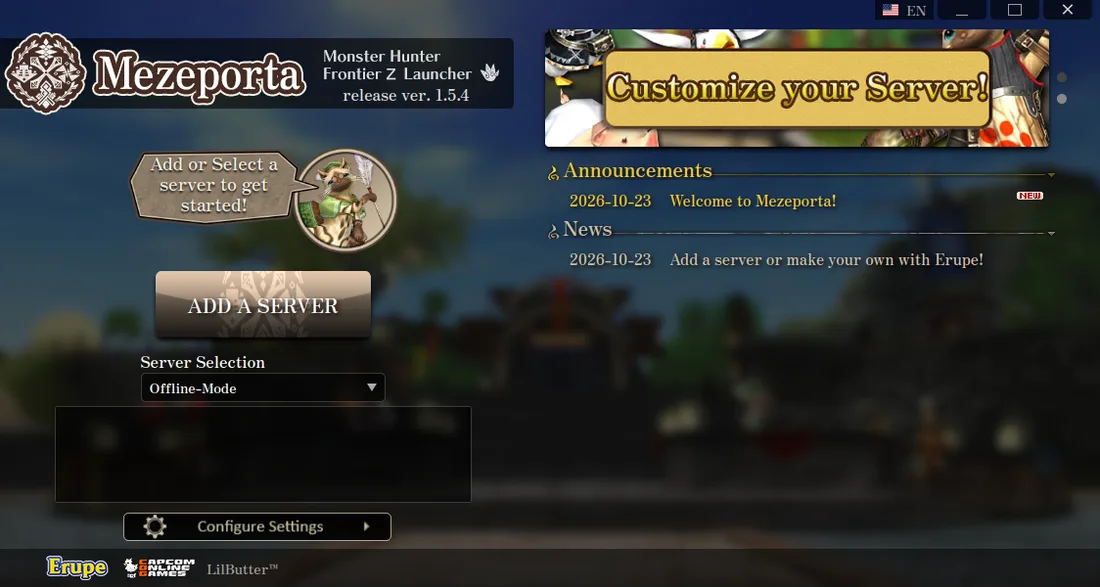
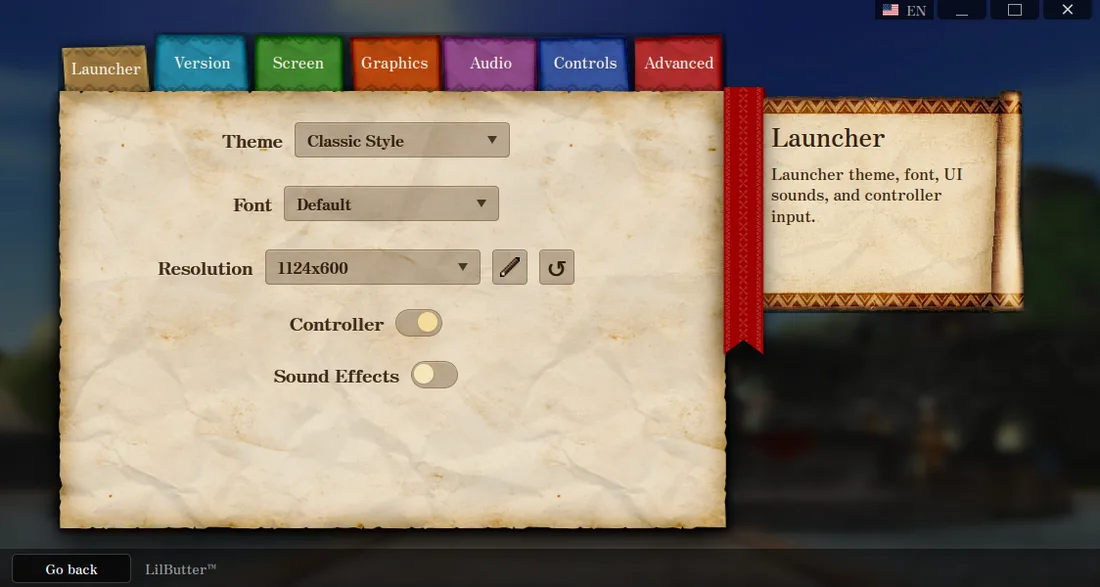
C:\Games\MHFZ. Do not disable your antivirus entirely. Exclude the game folder before you apply the patch: mhf.exe is the file most often flagged, and a quarantine in the middle of a copy leaves the install half patched.Open Configure Settings if you want to change the theme or language. On Windows there is no Wine prefix to configure, so the Linux-specific options do not apply.
6. Add the Hunsterverse server
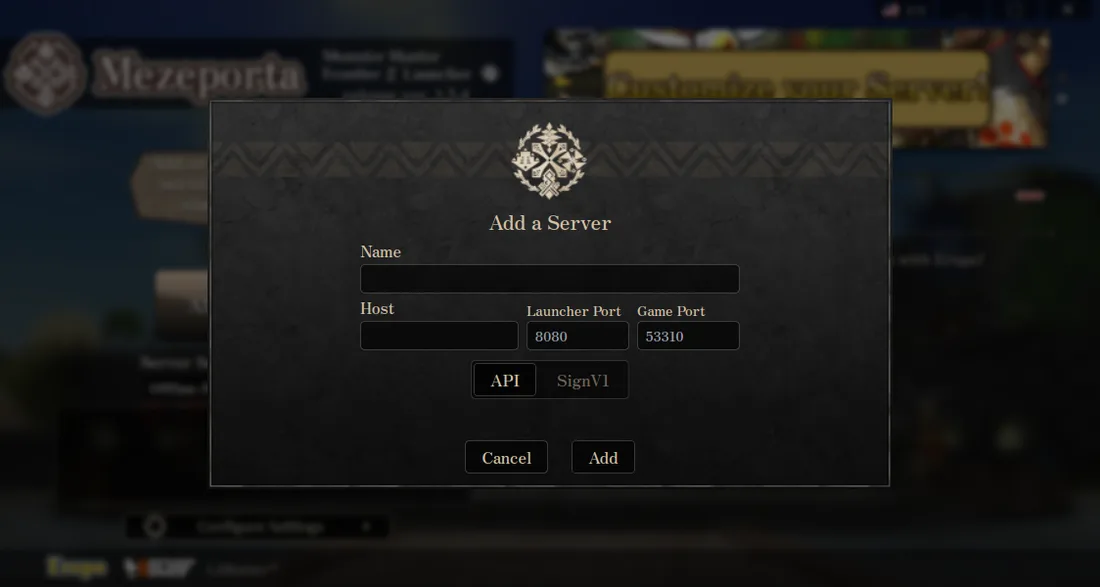
Press ADD A SERVER and enter:
| Field | Value |
|---|---|
| Name | Hunsterverse |
| Host | 129.213.54.221 |
| Launcher Port | 53312 |
| Game Port | 53310 |
| Mode | SignV1 (not API) |
| Version | ZZ |
7. Log in and play
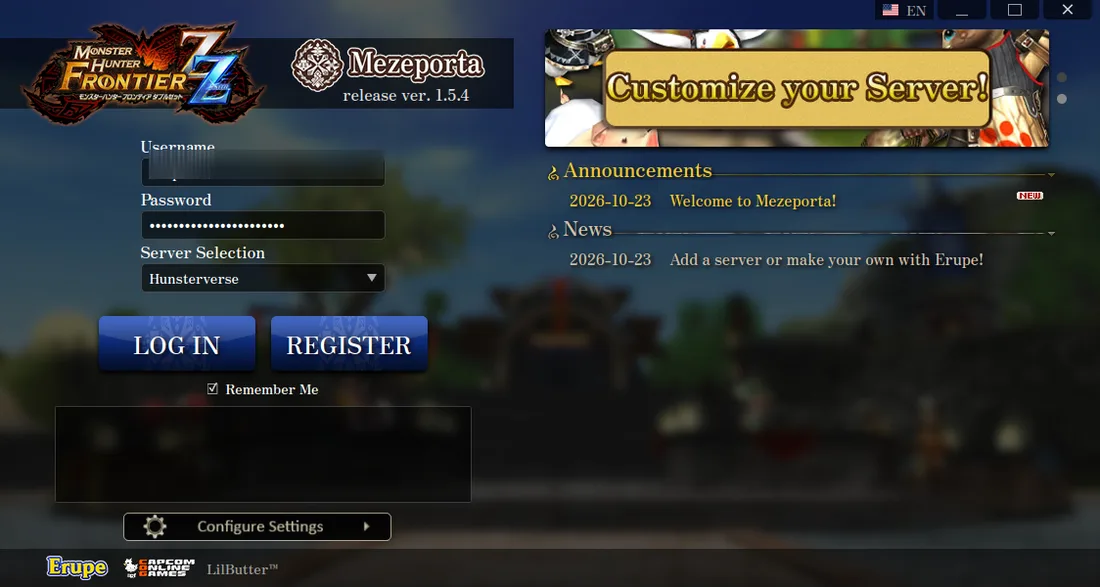
Select Hunsterverse in the Server Selection dropdown, type your own account name and password, and press LOG IN. Choose a character, then launch.
No account yet? Type the username and password you want and press LOG IN: Hunsterverse creates the account on your first login. You can also register at hunstermonter.net first, which is the safer route if the login is refused.
The launcher window closes when the game starts. That is normal. The game window is titled MONSTER HUNTER FRONTIER Z.
8. Troubleshooting
| Symptom | Fix |
|---|---|
d3dx9_43.dll was not found | Install the DirectX End-User Runtime (June 2010). Windows 10/11 do not ship the old D3DX libraries. |
VCRUNTIME140.dll or MSVCP140.dll missing | Install the x86 Visual C++ 2015-2022 redistributable. The game is 32-bit, so the x86 package is the one that matters. |
| SmartScreen blocks the launcher | More info, then Run anyway, but only for a file downloaded from the official releases page. |
Antivirus deletes mhfo.dll or Mezeporta.exe | Restore it from quarantine, then exclude C:\Games\MHFZ. Keep real-time protection on. |
| Launcher opens, game does not appear | Confirm mhf.exe sits next to dat. If the client is in a nested folder, the launcher cannot find it. |
| Login fails or character list is empty | Server mode is set to API instead of SignV1, or the ports are wrong. Launcher port 53312, game port 53310. |
| Controller not detected | The launcher ships xinput1_3.dll and XInputPlus.ini. Enable controller support in settings and keep those files in the game folder. |
| Japanese text shows as boxes | Install the Japanese language pack: Settings, Time and language, Language and region, Add a language, Japanese. |
| Want the original client back | Copy everything from C:\Games\MHFZ\original-files\ back over the game folder. |
9. Files and folders
Mezeporta-Windows.zip over the same folder. Your Mezeporta\config.json keeps the server list and settings, so back that folder up before a major update.Appendix: English text and language
MHF-Z is a Japanese game. The English translation is not a separate installer: it lives inside mhl.dll, the client's text layer, and that one file decides which language you see.
What the client patch already does. The Hunsterverse patch ships its own mhl.dll, so a normal install from the patch step is already translated. If your menus are English, you are done and should leave this file alone.
If your game is in Japanese. Your source client was untranslated, or something overwrote the patched DLL. Translation packs ship alternate builds of the same file. The pack this guide was written from contains two, mhfz_mhl.dll_custom and mhfz_mhl.dll_og. Swap the custom build in, keeping the server build safe:
cd C:\Games\MHFZ
Copy-Item mhl.dll mhl.dll.server
Copy-Item "C:\path\to\client pack\mhfz_mhl.dll_custom\mhl.dll" mhl.dll -Force
In that pack the _custom folder is the modified build to try first and _og is the untouched original. Folder names vary between packs, so use whichever pair came with yours.
If the game stops connecting after a swap, put mhl.dll.server back. The server patch build is what Hunsterverse expects, and a translation build from a different client version can be rejected.
Coverage is partial. Community translation updates do not translate everything. Item names, NPC dialogue and event text often stay Japanese even with the English DLL in place. That is the translation, not a broken install.
Fonts. If Japanese text shows as boxes, install noto-fonts-cjk and start the launcher with LANG=ja_JP.UTF-8 on Linux, or add the Japanese language pack on Windows (Settings, Time and language, Language and region, Add a language).
Appendix: Discord linking and bot commands
Linking your game account to Discord gives you character backups and the bot commands. The account page does the linking:
- Open hvmhfz.eclipseforge.xyz.
- Sign in with the same username and password you use in the game.
- The page shows a command such as
!f link <token>. Run it in the#mhfrontierchannel of the Hunsterverse Discord.
Once linked, these commands work through a DM with the bot, except where noted:
| Command | What it does |
|---|---|
!f backup or !f backupchar | DMs you a ZIP backup of your current character data. |
!f import <files> or !f importchar | Restores a backup: attach the BIN files from the ZIP. Extract the archive first; the bot skips 0 KB files. |
!f resetpassword or !f pw | DM the bot <newPassword> <confirmNewPassword> to change your password. |
!f worldstats or !f ws | In the Frontier Discord channel: current world status, season and players online. |
#mhfrontier for the current list.