Monster Hunter Frontier Z on Linux
Mezeporta launcher, portable Wine prefix, and the Hunsterverse private server.
- What you need
- Packages and 32-bit support
- Copy the game client
- Apply the client patch
- Install the Mezeporta launcher
- Create the portable Wine prefix
- Launch wrapper (two Linux fixes)
- Set the launcher options
- Add the Hunsterverse server
- Log in and launch
- Troubleshooting
- Files and folders
- Other distributions
Appendix: English text and language · Appendix: Discord linking and bot commands
1. What you need
- A Windows copy of the MHF-Z client, the folder named
Monster Hunter Frontier Online(about 5.5 GB). It must containdat/,mhf.exe,mhfo.dll,mhfo-hd.dll,mhl.dllandmhf.ini. - An Arch-based distribution (CachyOS, EndeavourOS, Manjaro, plain Arch).
- About 12 GB of free disk: 5.5 GB client, 0.8 GB prefix, plus backups.
- Your Hunsterverse account. You will type the username and password yourself; nobody needs to see them.
Where to get everything.
| What | Where to get it |
|---|---|
| Base game client, 5.5 GB | Community client folder on Google Drive, the link maintained by the /mhg/ community guide. Community-run, not Hunsterverse official; the folder also contains server files you do not need. |
| Hunsterverse site, account and Discord | hunstermonter.net for registration, guides, FAQ and troubleshooting, plus the Discord invite: discord.gg/YuE42eh |
| Game login page | hvmhfz.eclipseforge.xyz |
| Hunsterverse client patch, 34.6 MB | Frontier_Patch.zip from the EclipseKnight releases page |
| Mezeporta launcher | github.com/LilButter/Mezeporta/releases, grab the build for your OS, v1.5.4 or newer |
2. Packages and 32-bit support
MHF-Z is a 32-bit game, so Wine needs the multilib repository. Check it:
grep -q '^\[multilib\]' /etc/pacman.conf && echo "multilib enabled" || echo "multilib NOT enabled"If it is not enabled, edit /etc/pacman.conf, uncomment both the [multilib] header and the Include = /etc/pacman.d/mirrorlist line under it, then refresh:
sudo pacman -SyInstall the runtime dependencies:
sudo pacman -Syu --needed wine winetricks cabextract p7zip fuse2 \
  gstreamer gst-plugins-base gst-plugins-good gst-plugins-bad \
  gst-plugins-ugly gst-plugin-pipewire gst-libav \
  vulkan-tools mesa-utils gamemode
If everything is already installed, this is a no-op. You do not need a full system upgrade for this game.
3. Copy the game client
Put it in ~/Games/MHFZ. Replace the source path with wherever your copy lives, including a mounted Windows drive.
mkdir -p ~/Games/MHFZ
rsync -rlt --info=progress2 "/path/to/Monster Hunter Frontier Online/" ~/Games/MHFZ/
Verify the six required files exist:
cd ~/Games/MHFZ
ls mhf.exe mhfo.dll mhfo-hd.dll mhl.dll mhf.ini dat/mhfdat.bin
A clean client is about 5.2 GB and roughly 6,700 files.
4. Apply the client patch
Download the server's patch, back up the five files it replaces, then overlay it.
BASE="https://github.com/EclipseKnight/hvmhfz.eclipseforge.xyz/releases/download"
curl -L -o /tmp/Frontier_Patch.zip "$BASE/client_patch/Frontier_Patch.zip"

cd ~/Games/MHFZ
mkdir -p original-files/dat
cp -p mhf.exe mhfo.dll mhfo-hd.dll mhl.dll original-files/
cp -p dat/mhfdat.bin original-files/dat/

unzip -q /tmp/Frontier_Patch.zip -d /tmp/fp
rsync -rlt /tmp/fp/Frontier_Patch/ ~/Games/MHFZ/
The patch contains exactly five files: mhf.exe, mhfo.dll, mhfo-hd.dll, mhl.dll and dat/mhfdat.bin. The copies in original-files/ let you roll back at any time.
5. Install the Mezeporta launcher
Download the Linux build of the launcher and unpack it next to dat/, not inside it.
MURL="https://github.com/LilButter/Mezeporta/releases/download/v1.5.4"
curl -L -o /tmp/Mezeporta-Linux.zip "$MURL/Mezeporta-Linux.zip"

unzip -q /tmp/Mezeporta-Linux.zip -d ~/Games/MHFZ
chmod +x ~/Games/MHFZ/run-mezeporta.sh ~/Games/MHFZ/mezeporta-bin
Afterwards the folder looks like this: dat/, mhf.ini, mhfo.dll, mezeporta-bin, run-mezeporta.sh, Mezeporta/. Check newer releases before you start; anything v1.5.4 or newer works the same way.
6. Create the portable Wine prefix
The launcher expects its Wine prefix inside the game folder. The bundled script sets it up and installs DXVK, d3dcompiler_47 and the Visual C++ runtime into it:
cd ~/Games/MHFZ
bash SetupDeps/mezeporta-setup-arch.sh --portable-prefix "$HOME/Games/MHFZ"This creates ~/Games/MHFZ/Mezeporta/WinePrefix (about 800 MB). Add --controller-fix if you use a gamepad:
bash SetupDeps/mezeporta-setup-arch.sh --portable-prefix "$HOME/Games/MHFZ" --controller-fixVerify at the end:
bash SetupDeps/mezeporta-setup-arch.sh --verify7. Launch wrapper (two Linux fixes)
On KDE Wayland with an NVIDIA card, the launcher window needs two environment variables. Create this small wrapper in the game folder:
cat > ~/Games/MHFZ/run-mezeporta-x11.sh <<'EOF'
#!/usr/bin/env sh
export GDK_BACKEND=x11
export WEBKIT_DMABUF_RENDERER_FORCE_SHM=1
exec "$(dirname "$0")/run-mezeporta.sh" "$@"
EOF
chmod +x ~/Games/MHFZ/run-mezeporta-x11.sh
Why each one:
| Variable | Problem it solves |
|---|---|
GDK_BACKEND=x11 | Without it the launcher dies at startup with Gdk-Message: Error 71 (Protocol error) dispatching to Wayland display. |
WEBKIT_DMABUF_RENDERER_FORCE_SHM=1 | Without it the window opens but stays blank, because WebKitGTK cannot allocate a GBM buffer on the NVIDIA driver (Failed to create GBM buffer ... Invalid argument). |
KillMode=control-group then kills the game process with it. The game dies about 10 seconds after the launcher window closes. Start it from a terminal, a desktop shortcut, or with setsid nohup.8. Set the launcher options
Run the wrapper and wait for the launcher window:
~/Games/MHFZ/run-mezeporta-x11.shOn first run it shows the empty state:
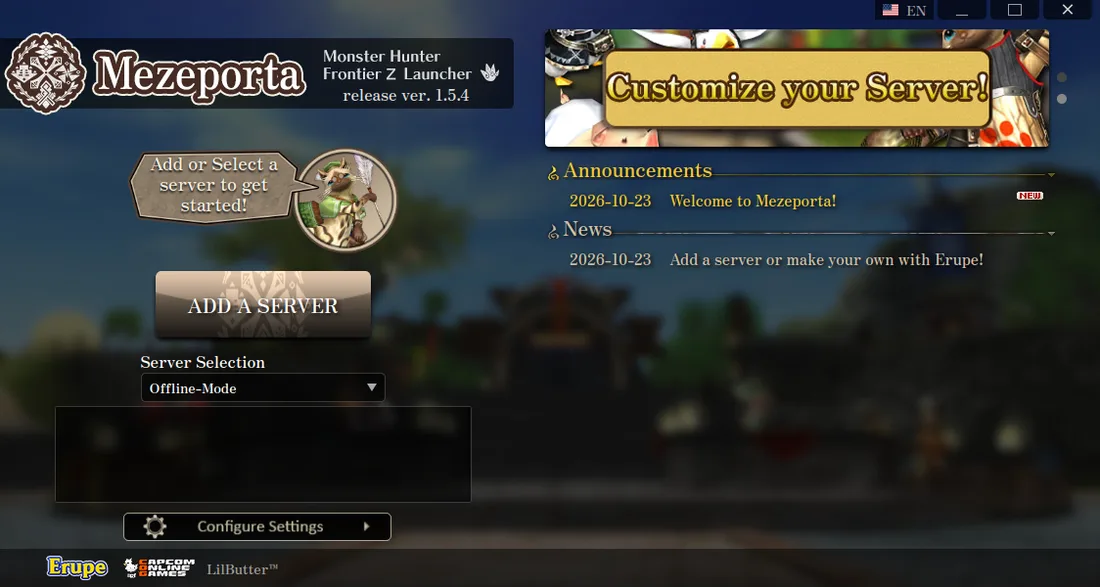
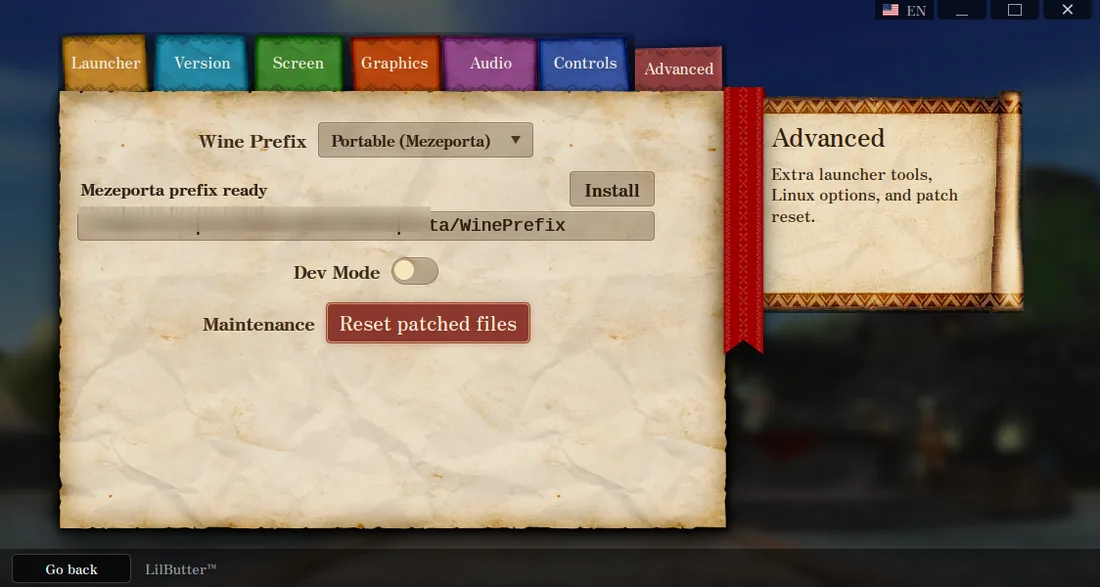
Open Configure Settings, then the Advanced tab, and set Wine Prefix to Portable (Mezoperta). The prefix path should point at ~/Games/MHFZ/Mezeporta/WinePrefix, and the status line should say the prefix is ready.
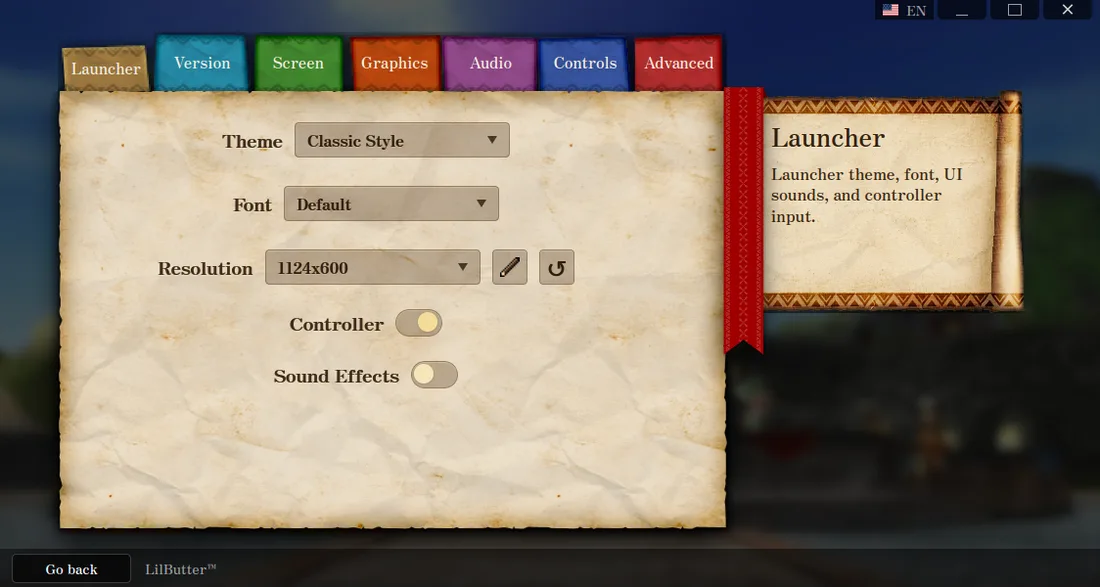
The other tabs hold cosmetic options. Server Mode is not here: it is a property of each server and is chosen when you add or edit one.
9. Add the Hunsterverse server
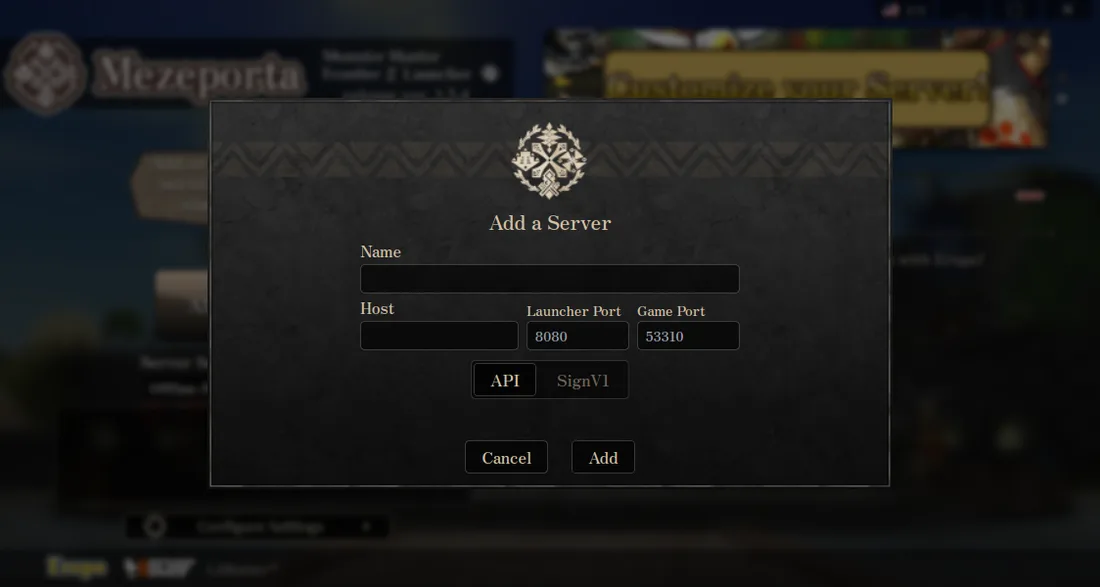
Back on the main screen press ADD A SERVER and fill it in like this:
| Field | Value |
|---|---|
| Name | Hunsterverse |
| Host | 129.213.54.221 |
| Launcher Port | 53312 |
| Game Port | 53310 |
| Mode | SignV1 (not API) |
| Version | ZZ |
10. Log in and launch
Select Hunsterverse in the Server Selection dropdown, type your own account name and password, and press LOG IN. Pick a character, then launch.
No account yet? Type the username and password you want and press LOG IN: Hunsterverse creates the account on your first login. You can also register at hunstermonter.net first, which is the safer route if the login is refused.
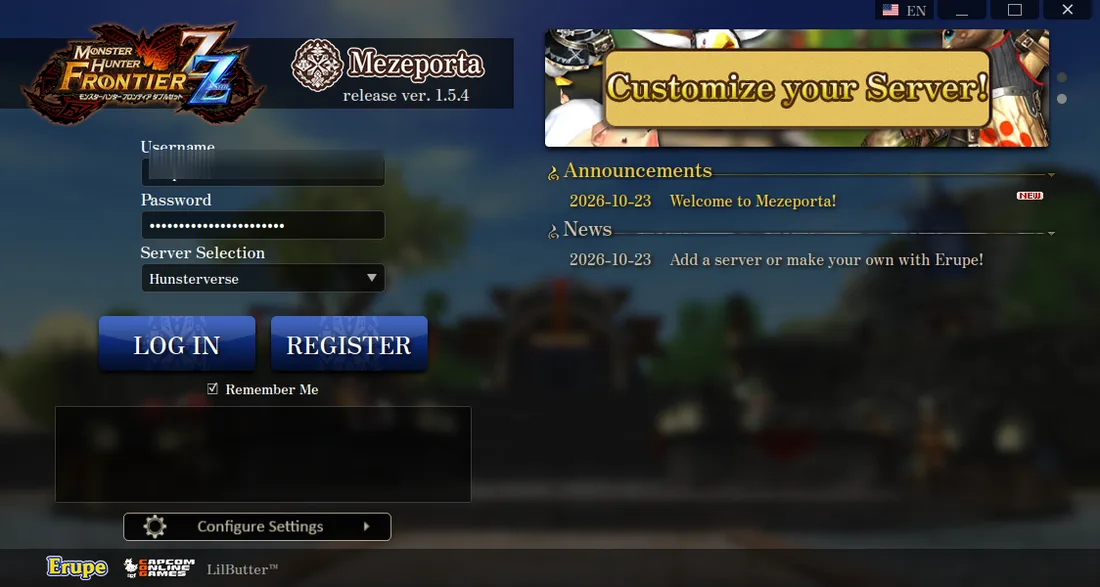
The launcher window closes when the game starts. That is normal, as long as you did not start the launcher inside a systemd unit (see step 7). The game window is titled MONSTER HUNTER FRONTIER Z.
11. Troubleshooting
| Symptom | Cause and fix |
|---|---|
Launcher exits instantly with Gdk-Message: Error 71 | Native Wayland path. Start it through the wrapper with GDK_BACKEND=x11. |
| Launcher window is blank or black | WebKitGTK GBM failure on NVIDIA. Add WEBKIT_DMABUF_RENDERER_FORCE_SHM=1. WEBKIT_DISABLE_DMABUF_RENDERER and WEBKIT_DISABLE_COMPOSITING_MODE do not fix this one. |
| Launcher closes and nothing appears, every time | The launcher is being run under systemd-run. Its unit is killed together with the game when the launcher exits. Start it directly, or with setsid nohup. |
| Game starts then quits after a few seconds | Check journalctl --user -u <unit> if you used a unit, otherwise run the launcher from a terminal and read the output. A DXVK or Wine error appears there. |
| Text in game is boxes or garbage | Install noto-fonts-cjk, enable ja_JP.UTF-8 in /etc/locale.gen, run sudo locale-gen, then start with LANG=ja_JP.UTF-8 ~/Games/MHFZ/run-mezeporta-x11.sh. |
| No sound | Install gst-plugin-pipewire and gst-plugins-good, then re-run the --verify step. |
| Wrong or broken prefix | Delete ~/Games/MHFZ/Mezeporta/WinePrefix and re-run the --portable-prefix step. Your game files are untouched. |
| Want vanilla files back | Copy everything from ~/Games/MHFZ/original-files/ back over the game folder. |
12. Files and folders
13. Other distributions
Everything after the packages is distro independent: the game folder, the patch, the launcher, the wrapper and the server settings are identical everywhere. Only package names and the prefix bootstrap change.
Debian and Ubuntu
sudo dpkg --add-architecture i386
sudo apt update
sudo apt install wine wine32:i386 winetricks cabextract p7zip-full \
  gstreamer1.0-plugins-base gstreamer1.0-plugins-good \
  gstreamer1.0-plugins-bad gstreamer1.0-plugins-ugly \
  gstreamer1.0-pipewire vulkan-tools mesa-utils gamemode
The release zip ships a matching script, so you can skip the manual prefix steps:
cd ~/Games/MHFZ
bash SetupDeps/mezeporta-setup-ubuntu.sh --portable-prefix "$HOME/Games/MHFZ" --controller-fix
bash SetupDeps/mezeporta-setup-ubuntu.sh --verify
Drop --controller-fix if you play with mouse and keyboard. The repo copy of this script is named install-deps-ubuntu.sh; it is the same file.
wine --version, you want 9.0 or newer.Fedora
sudo dnf install wine winetricks cabextract p7zip \
  gstreamer1-plugins-base gstreamer1-plugins-good gstreamer1-plugins-bad-free \
  gstreamer1-plugins-ugly gstreamer1-plugin-pipewire \
  vulkan-tools glx-utils gamemode
dnf install wine pulls the 32-bit Wine libraries with it. If a 32-bit prefix still refuses to start, add the i686 package explicitly:
sudo dnf install wine.i686Fedora has no bundled setup script, so bootstrap the prefix by hand with the generic steps below.
openSUSE
sudo zypper install wine wine-32bit winetricks cabextract p7zip \
  gstreamer-plugins-base gstreamer-plugins-good gstreamer-plugins-bad \
  gstreamer-plugins-ugly gstreamer-plugin-pipewire \
vulkan-tools Mesa-demo-x gamemodewine-32bit may not resolve. If it does not, follow the openSUSE Wine wiki for the current repository layout, or use the generic path below on a distribution with multilib.Any other distribution
You need five things: Wine 9.0 or newer with 32-bit support, winetricks, cabextract, p7zip, and GStreamer with the base, good, bad and ugly plugin sets plus a PipeWire, PulseAudio or ALSA sink. With those present, build the prefix yourself:
cd ~/Games/MHFZ
export WINEPREFIX="$HOME/Games/MHFZ/Mezeporta/WinePrefix"
export WINEDEBUG=-all

mkdir -p "$WINEPREFIX"
wineboot -u
wineserver -w

WINETRICKS_DISABLE_LNK=1 WINETRICKS_OPT_SHAREDPREFIX=0 \
  winetricks -q d3dcompiler_47 dxvk vcrun2022
wineserver -w
Then the gamepad overrides, if you use a controller:
for dll in xinput1_3 dinput d8input; do
  wine reg add 'HKCU\Software\Wine\DllOverrides' /v "$dll" /t REG_SZ /d 'native,builtin' /f
done
wineserver -w
Sanity check before launching:
wine --version                  # 9.0 or newer
winetricks --version
gst-inspect-1.0 appsink >/dev/null && echo "gstreamer ok"
gst-inspect-1.0 autoaudiosink >/dev/null && echo "audio sink ok"
The wrapper is the same everywhere
GDK_BACKEND=x11 matters on Wayland desktops of any distribution, and WEBKIT_DMABUF_RENDERER_FORCE_SHM=1 matters on NVIDIA. On X11, or on AMD and Intel graphics, you can usually leave both out, but keeping them costs nothing.
Appendix: Discord linking and bot commands
Linking your game account to Discord gives you character backups and the bot commands. The account page does the linking:
- Open hvmhfz.eclipseforge.xyz.
- Sign in with the same username and password you use in the game.
- The page shows a command such as
!f link <token>. Run it in the#mhfrontierchannel of the Hunsterverse Discord.
Once linked, these commands work through a DM with the bot, except where noted:
| Command | What it does |
|---|---|
!f backup or !f backupchar | DMs you a ZIP backup of your current character data. |
!f import <files> or !f importchar | Restores a backup: attach the BIN files from the ZIP. Extract the archive first; the bot skips 0 KB files. |
!f resetpassword or !f pw | DM the bot <newPassword> <confirmNewPassword> to change your password. |
!f worldstats or !f ws | In the Frontier Discord channel: current world status, season and players online. |
#mhfrontier for the current list.